
Motorola Field Team

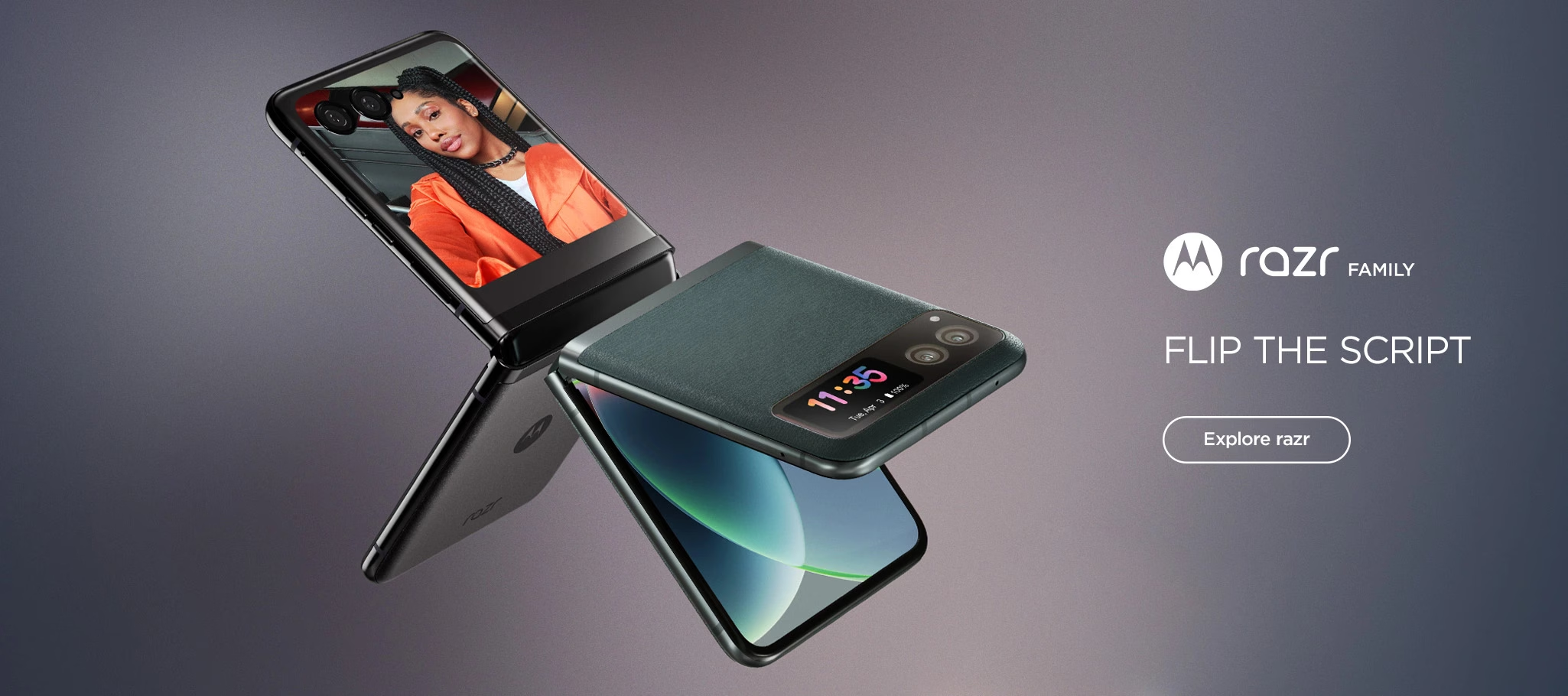
moto razr series

Installation FAQs:

  • BricTECH load & install: automatic
  • retail mode load: automatic
  • retail mode launch: automatic
  • retail mode additional requirements: external display requires acceptance of permissions

Watch the video to view the installation instructions for setting up BricTECH and Retail Mode installed.
moto edge - 2025

Installation FAQs:

  • BricTECH load & install: automatic
  • retail mode load: automatic
  • retail mode launch: automatic
  • retail mode additional requirements: N/A

Watch the video to view the installation instructions for setting up BricTECH and Retail Mode installed.
moto g & g power - 2025

Installation FAQs:

  • BricTECH load & install: automatic
  • retail mode load: automatic
  • retail mode launch: automatic
  • retail mode additional requirements: After accepting permissions, please select one of the following experiences:

Motorola OEM:
For moto g select “moto g – 2025”
For moto g power “moto g power – 2025″

T-Mobile LearrnMore pilot doors:
For moto g – “LM_moto g – 2025”
For moto g power – “LM_moto g power – 2025″

Watch the video to view the installation instructions for setting up BricTECH and Retail Mode installed.
FAQ’s Re: BricTECH

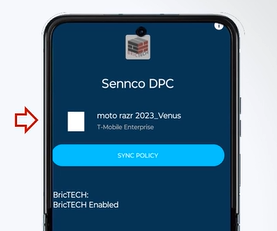
Look for the Sennco DPC (BricTECH Icon) on the device. Click it.

You should see a profile name above T-Mobile Enterprise.  Eg: moto razr 2023

If you do not see a profile listed, we recommend resetting the device and starting over.

If you are seeing a consent screen, then a reset of the device is requiring to go through the process again.

*please ensure you have a good network connection either live sim or WiFi.  Make sure it is not an esim or DATA_TRANSFER_NETWORK

**activating the device on an esim may cause the device to factory reset every couple of hours

Legacy | Motorola Factory Reset Guide

1. Start pressing the Power button for a short while and tap Restart from the menu.
2. Push Volume Down and Power keys for a few seconds.
3. Release all buttons when you see information about Fastboot Mode.
4. In this mode choose Recovery Mode by using Volume keys to scroll down and the Power button to confirm that.
5. If the Android Robot image shows up push Volume Up + Power key.
6. Then select wipe data/factory reset by using Volume buttons to navigate and the Power key to accept it.
7. Now choose yes from the menu and press the Power button.
Finally select reboot system now with the Power key.

Passwords:

Phones: (devices without BricTECH)

moto g power 5G – 2024 demo3948

moto g 5G – 2023 & 2024 demo3948

moto stylus g 5G – 2023 demo3948

moto razr+ – 2023 demo3948

* Please do not share passwords externally

Learn More | Motorola Factory Reset Guide

1. Access settings
2. Search and select factory reset
3. Enter Password: –> 1234

**moto razr+ – after reset follow the ‘moto config’ video on Learn More site to complete**